Login
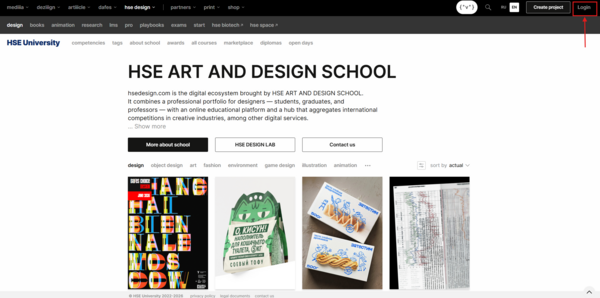
To enter the hsedesign.ru website, please click the «Log In» button.
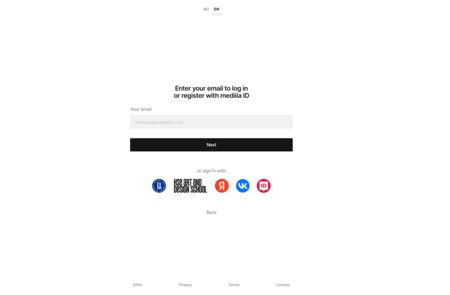
If you do not have an account on the platform, click «Create.»
If you already have an account, enter your username and password.
Students at the School can use their student portfolio login.
Project Creation
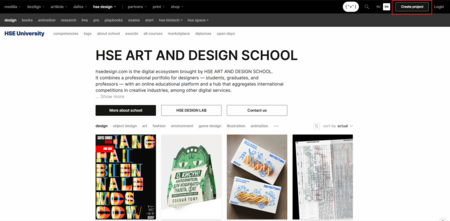
To create a project:
- Click the «Add Project» button in the upper right corner;
- If necessary, enter the first and last names of your co-authors, but no more than two.
- Enter a title. The title is the name of your project, which must correspond to its content and portfolio theme;
- Be sure to select the black tag that corresponds to the main competency you are demonstrating in the project in the «Required Tag» field;
- Optionally, add additional tags in the «Tags» field;
- Upload a cover image;
- Optionally, select a background color for your long-read or choose your own color by clicking the gradient icon.
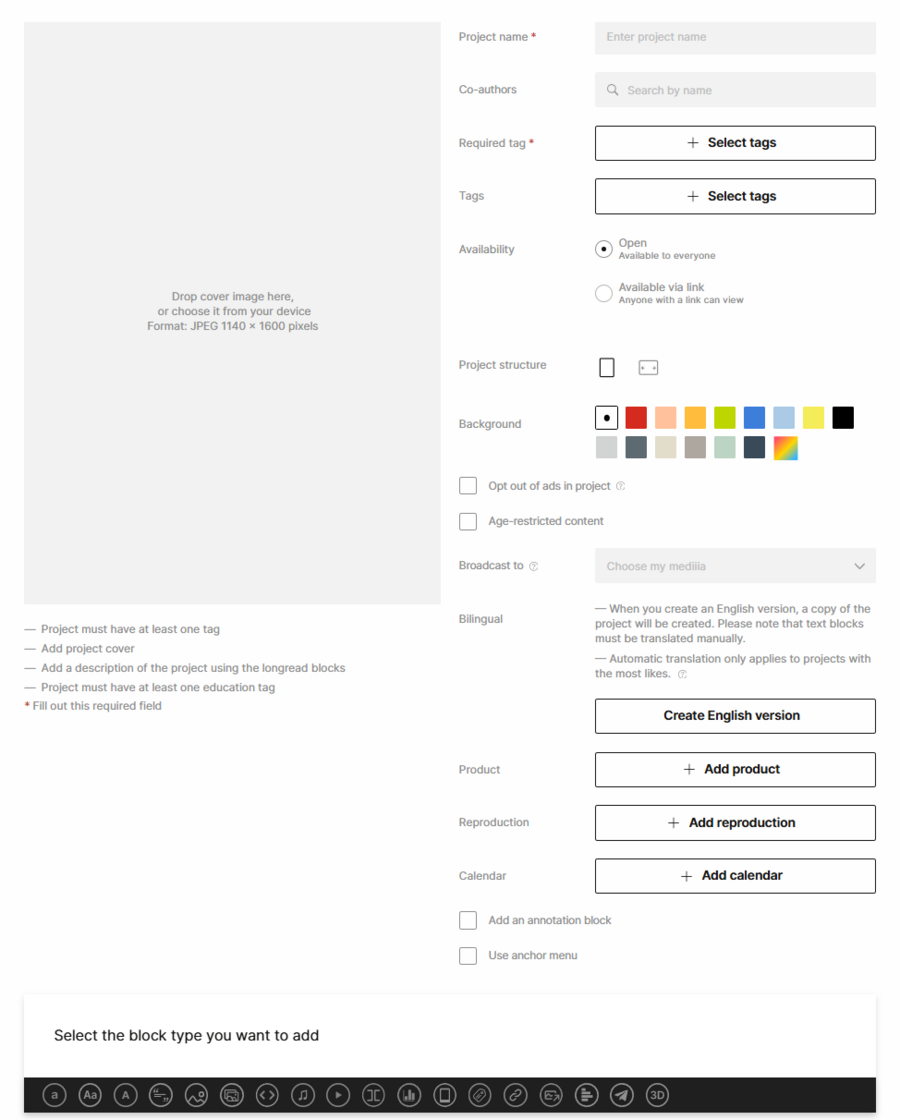
Additional fields to complete

«Co-Authors» — the option to add up to two collaborators.
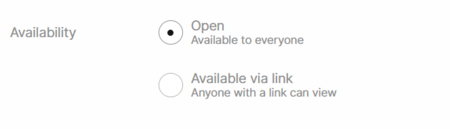
«Accessibility» — the default setting for the project is «Open Access.» If you change this mode to «Link Access,» the project will be moved to the «Hidden» section after publication.

«Broadcast to”—when creating a project, you can immediately repost it to your channel on mediia if necessary. This field will allow you to select your own channels created on https://mediiia.com/ or available educational channels for the courses.
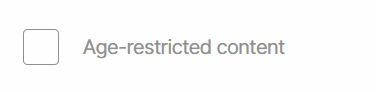
«Content for persons over 18» — this checkbox is selected if the «Accessibility» field states «Open Access» and the project is not intended for viewers under 18.
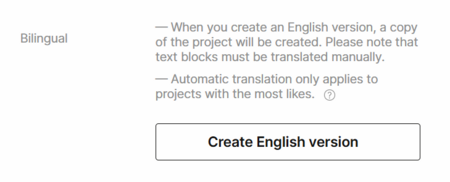
«Bilingual» allows you to edit the Russian and English versions separately. After publication, the appropriate version of the project will be displayed depending on the selected language. You can also create different covers for the Russian-language and English-language versions of the project.

«Product» — you can add a card for your item that was previously created and featured on https://gallery.com/.

«Reproduction» — a previously purchased card that you can share.

«Calendar» — a feature that allows you to link a calendar to a project via a calendar link. A project is a way to promote your calendar or collection.
Creating a Longform Article
By clicking «Add Block, ” you can: — Insert text (up to 2,400 characters); — Add illustrations: JPG up to 150 MB (with a resolution not exceeding 3720×5262 px or 5262×3720 px). PNG up to 20 MB; — Embed animated images in GIF format, up to 20 MB; — Embed video from the Rutube, Kinescope, VK Video, or Vimeo platform using the corresponding icon in the bottom-left corner.
To save the text, image, or video, click the „Save“ button on the block’s bottom panel.

Project descriptions and comments for visual slides should be rendered in a small, light-weight font on a white background. The maximum volume for such slides is 2,400 characters, but the text should ideally be broken down into meaningful sections (paragraphs) and grouped into chunks of 600–800 characters.

The platform allows you to format headings, subheadings, and key text snippets that the author wishes to highlight against the main body text using a large font size and bold weight. These texts can be placed on colored banners—for example, against the contrasting background of a long-form article. The maximum volume for key text snippets is 800 characters. An example can be viewed below.
This is how a key text fragment, set in a large, bold typeface, looks next to the main body text block.
This is what the main text looks like (small font size, light weight) when loaded into the block, with a volume of 200 characters.
When adding a block containing an image, you can add a caption (up to 200 characters). An example is provided below.
This is how to add a caption to an image slide
To move blocks within the longread, use the six-dot icon in the upper left corner.
Use the corresponding icons to edit or delete blocks.